Valheim gives you plenty of ways to die, from falling trees and angry trolls to running out of stamina at exactly the wrong moment. Knowing the controls makes surviving its Viking wilderness considerably easier, especially when you are trying to block an attack, build a shelter or recover your equipment after dying.
This Valheim controls guide covers PlayStation, Xbox and PC, including combat, inventory management, building, Forsaken powers and controller settings. The PlayStation controls are based on the game's controller menu, including Layout 2, Layout and Classic.
Valheim uses contextual controls, meaning the same button can perform different actions depending on whether you are fighting, building, using the inventory or navigating a radial menu.
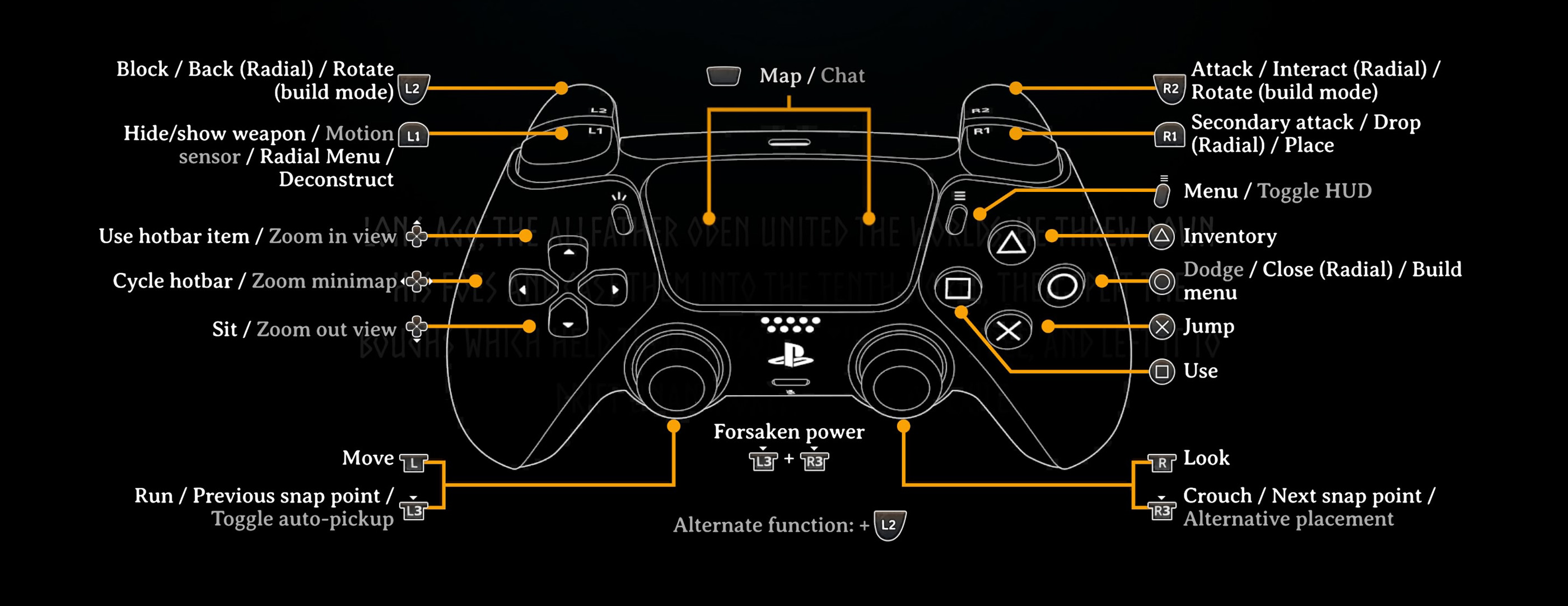
Valheim PlayStation Controls: Layout 2
Layout 2 is the controller configuration shown in the first screenshot. It places the main attack on R2, blocking on L2 and sprinting on L3.
| Action | PS5 Control |
|---|---|
| Move | Left Stick |
| Look / Camera | Right Stick |
| Run | L3 |
| Crouch | R3 |
| Jump | X |
| Dodge | Circle |
| Attack | R2 |
| Secondary Attack | R1 |
| Block | L2 |
| Use / Interact | Square |
| Inventory | Triangle |
| Hide / Show Weapon | L1 |
| Use Hotbar Item | D Pad Up |
| Cycle Hotbar | D Pad Left / Right |
| Sit | D Pad Down |
| Map / Chat | Touch Pad |
| Menu / Toggle HUD | Options |
| Forsaken Power | L3 + R3 |
Several buttons have additional functions. L1 opens the radial menu or deconstructs structures in the appropriate context. R2 rotates building pieces, while R1 can place them. Circle also closes radial menus and opens the build menu when appropriate.
When using the inventory, L2 acts as the alternative function modifier. The directional buttons also control zoom and hotbar selection depending on the current screen.
Valheim PlayStation Controls: Layout
The configuration named Layout is similar to Layout 2, but the shoulder buttons and dodge behavior are arranged differently.
| Action | PS5 Control |
|---|---|
| Move | Left Stick |
| Look | Right Stick |
| Run | L3 |
| Crouch | R3 |
| Jump | X |
| Dodge | Circle |
| Attack | R1 |
| Secondary Attack | R2 |
| Block | L1 |
| Use / Interact | Square |
| Inventory | Triangle |
| Hide / Show Weapon | L2 |
| Use Hotbar Item | D Pad Up |
| Cycle Hotbar | D Pad Left / Right |
| Sit | D Pad Down |
| Map / Chat | Touch Pad |
| Menu | Options |
| Forsaken Power | L3 + R3 |
On this layout, L2 is also used for the radial menu and rotating building pieces. R2 handles secondary attacks and dropping items in the relevant menus, while R1 is used for primary attacks and placing structures.
Valheim PlayStation Classic Controls
Classic changes more than the shoulder buttons. Sprint moves to L1, crouch moves to L3 and jumping uses Circle. It may feel more familiar if you previously played Valheim with its older controller arrangement.
| Action | PS5 Control |
|---|---|
| Move | Left Stick |
| Look | Right Stick |
| Run | L1 |
| Crouch | L3 |
| Jump | Circle |
| Dodge | Circle |
| Attack | R2 |
| Secondary Attack | R1 |
| Block | L2 |
| Use / Interact | X |
| Inventory | Triangle |
| Build Menu | X |
| Use Hotbar Item | D Pad Up |
| Cycle Hotbar | D Pad Left / Right |
| Sit | Square |
| Map / Chat | Touch Pad |
| Menu | Options |
| Forsaken Power | D Pad Down |
Classic also uses R3 for hiding or showing weapons, opening the radial menu and selecting the next building snap point in the relevant context.
If you are following a video guide and its PlayStation button prompts do not match your game, check the selected controller layout before assuming your controls are incorrect.
Valheim PC Keyboard and Mouse Controls
On PC, Valheim uses a familiar keyboard and mouse setup. These are the standard controls, although individual bindings can be changed in Settings.
| Action | PC Control |
|---|---|
| Move | W / A / S / D |
| Look | Mouse |
| Run | Left Shift |
| Jump | Space |
| Crouch / Sneak | Left Ctrl |
| Attack | Left Mouse Button |
| Secondary Attack | Middle Mouse Button |
| Block | Right Mouse Button |
| Dodge Roll | Hold Block + Space + Direction |
| Interact / Pick Up | E |
| Inventory | Tab |
| Hotbar Items | 1 to 8 |
| Hide / Show Weapon | R |
| Sit | X |
| Forsaken Power | F |
| Map | M |
| Toggle Auto Pickup | V |
| Build Menu | Right Mouse Button with Hammer Equipped |
| Deconstruct | Middle Mouse Button with Hammer Equipped |
| Rotate Building Piece | Mouse Wheel |
| Menu | Esc |
Valheim Xbox Controller Controls
Xbox controls depend on the selected controller layout, just as they do on PlayStation. The following table covers the commonly used Classic arrangement.
| Action | Xbox Classic Control |
|---|---|
| Move | Left Stick |
| Look | Right Stick |
| Run | LB |
| Jump | B |
| Crouch | Left Stick Button |
| Attack | RT |
| Secondary Attack | RB |
| Block | LT |
| Dodge Roll | LT + B + Direction |
| Interact | A |
| Inventory | Y |
| Use Hotbar Item | D Pad Up |
| Cycle Hotbar | D Pad Left / Right |
| Map | View |
| Menu | Menu Button |
If your Xbox buttons differ, open Settings and inspect the controller layout currently selected. The game's visual controller diagram is the most reliable reference for your active configuration.
How to Dodge Roll in Valheim
Dodge rolling is one of the most useful defensive actions in Valheim. A correctly timed roll can avoid damage that would otherwise break through your defence.
On PC, hold the block button, press Jump and move in the direction you want to roll. On PlayStation Layout 2, use Circle to dodge. Classic uses its block and dodge combination.
Rolling consumes stamina, so repeatedly dodging without a plan can leave you unable to attack or escape. Watch the enemy's attack animation and roll when the strike is about to connect.
How to Block and Parry Attacks
Blocking reduces incoming damage when you have a suitable weapon or shield equipped. Parrying requires you to begin blocking shortly before an attack lands.
A successful parry can stagger an enemy, creating an opportunity for additional damage. However, parrying is not guaranteed to work against every attack. Your equipment, health and the strength of the incoming hit all matter.
Practise against weaker enemies before trying to parry trolls or powerful creatures in unfamiliar biomes.
How to Build in Valheim
Equip the Hammer to access construction. You need the appropriate materials and, for many structures, a nearby Workbench or other required crafting station.
On PC, use the right mouse button to open the build menu, left click to place a selected piece and the mouse wheel to rotate it. Middle click removes a building piece when the Hammer is equipped.
Controller building uses contextual commands for opening the build menu, placing pieces, rotating them and deconstructing. The PlayStation screenshots show these actions assigned differently across the three layouts.
Pay attention to the colour of building pieces while constructing. Valheim uses structural stability, so a tall roof or unsupported floor can collapse even when you have enough materials to place it.
How to Change Building Snap Points
Snap points help align walls, floors, roofs and other construction pieces. If a piece keeps attaching to the wrong position, cycle the available snap points or adjust your camera angle.
The PlayStation controller layouts include controls for previous and next snap points. Layout 2 uses L3 and R3 for these functions in the relevant building context.
Learning snap point controls makes complicated buildings much less frustrating, especially when working with angled roofs or trying to extend a structure without leaving gaps.
How to Use the Hotbar
Your hotbar gives quick access to frequently used equipment and consumables. On PC, press the number corresponding to the item slot.
On PlayStation, the directional buttons let you cycle through hotbar items and use the selected item. The same general approach applies to Xbox controllers.
Keep your main weapon, shield, Hammer and useful consumables in predictable positions. During a difficult fight, remembering where an item is located matters more than arranging the hotbar neatly.
How to Activate Forsaken Powers
Defeating a Forsaken boss allows you to obtain its trophy and unlock the corresponding power at the Sacrificial Stones. You can have one Forsaken power selected at a time.
On PC, the default activation key is F. The PlayStation screenshots show L3 + R3 for Layout and Layout 2, while Classic uses D Pad Down.
Forsaken powers have cooldowns, so activate them when their effect will genuinely help. Eikthyr's power, for example, reduces the stamina cost of running and jumping, making it valuable for exploration and escaping danger.
How to Change Controller Layout in Valheim
Open Settings and select Controller. Use the Controller Layout option to switch between available configurations.
The same menu includes controller sensitivity, vibration strength, camera inversion, motion sensor settings and adaptive trigger options where supported.
PlayStation players can also enable the motion sensor and adjust its sensitivity independently on the X and Y axes. If the camera feels uncomfortable, experiment with sensitivity before changing your entire control layout.
Valheim Controls FAQ
How do you sprint in Valheim?
On PC, hold Left Shift. On PlayStation Layout 2, press L3. Classic uses L1. Xbox Classic uses LB.
How do you open the inventory?
Press Tab on PC, Triangle on PlayStation or Y on Xbox.
How do you use Forsaken powers?
Activate your selected power with F on PC. On PlayStation Layout 2, press L3 and R3 together.
How do you repair weapons and tools?
Use the repair function at the appropriate crafting station. Repairing equipment normally does not require additional materials.
Can you change Valheim controls?
Yes. PC players can change keyboard bindings, while controller players can select different layouts and adjust supported controller settings.
Which Valheim controller layout is best?
There is no universally best layout. Layout 2 places sprint on L3 and dodge on Circle, while Classic uses L1 for sprinting and a different jump arrangement. Choose the layout that makes combat and movement comfortable.
Comments
No comments yet. Be the first to share your thoughts!