Full Throttle Remastered is primarily a point-and-click adventure, but its controller layout also has to accommodate motorcycle fights, driving sequences, inventory puzzles, dialogue and the remaster's presentation options. The controls therefore change slightly according to what Ben is doing.
During ordinary exploration, the left stick moves a cursor rather than controlling Ben directly. Point at a destination and press Cross to make him walk there. When the cursor rests on an interactive hotspot, Cross opens the contextual verb interface, allowing Ben to look at, talk to, use or kick the selected object.
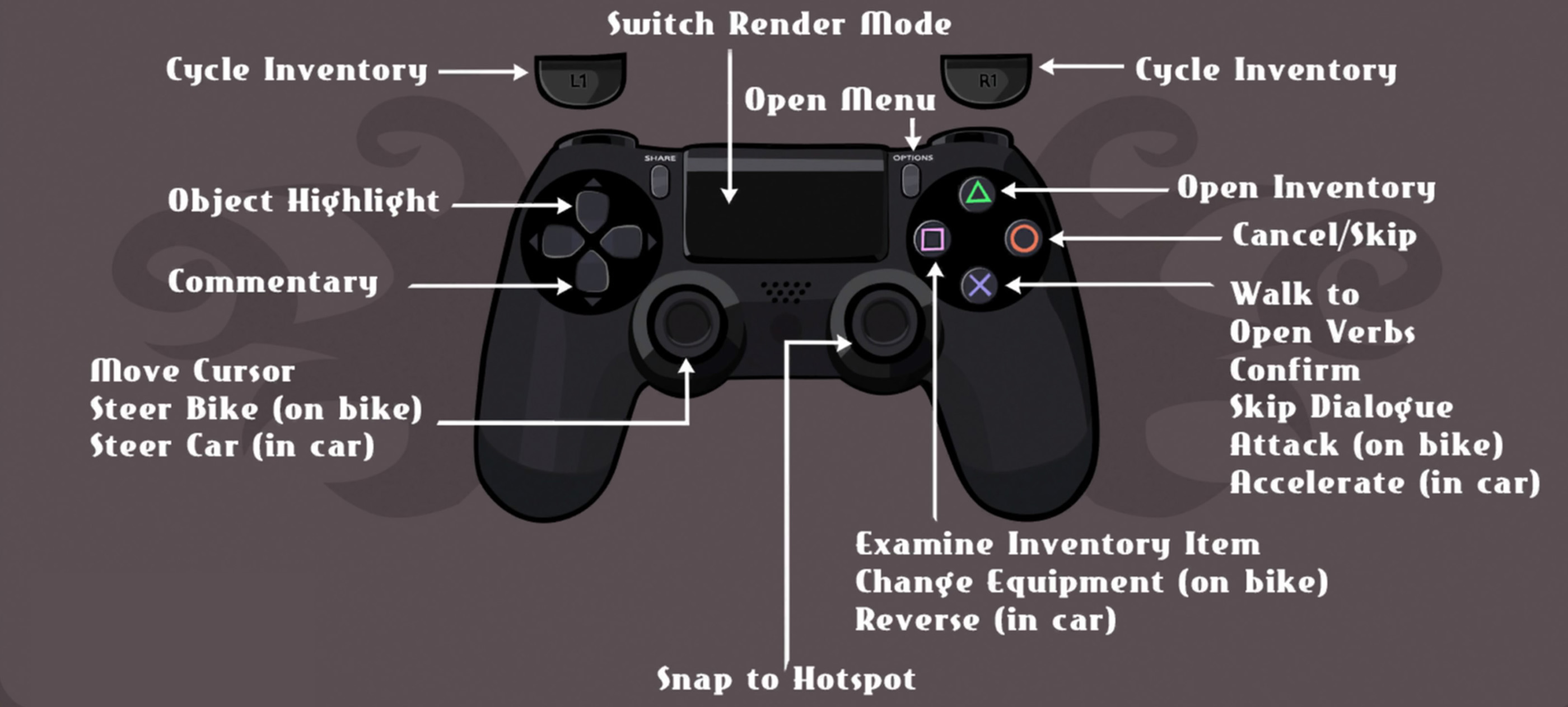
The same buttons take on more direct roles during action scenes. On the motorcycle, the left stick steers, Cross attacks and Square changes Ben's equipped weapon. During the car sequence, Cross accelerates and Square reverses.
Full Throttle Remastered Controls
| Action | PlayStation | Xbox | PC |
|---|---|---|---|
| Move Cursor | Left Stick | Left Stick | Mouse |
| Move Ben to Selected Position | Cross | A | Left Click |
| Open Contextual Verbs | Cross on a Hotspot | A on a Hotspot | Hold Left Click on a Hotspot |
| Confirm Selection | Cross | A | Left Click / Enter |
| Skip Dialogue | Cross | A | Assigned Confirm Input |
| Cancel Current Selection | Circle | B | Right Click / Esc |
| Skip Cutscene or Sequence | Circle when Supported | B when Supported | Esc / Assigned Skip Input |
| Open Inventory | Triangle | Y | Right Click / Assigned Inventory Input |
| Cycle to Previous Inventory Item | L1 | LB | Mouse Wheel / Assigned Previous Item Key |
| Cycle to Next Inventory Item | R1 | RB | Mouse Wheel / Assigned Next Item Key |
| Examine Selected Inventory Item | Square | X | Assigned Examine Input |
| Use Inventory Item | Select Item, then Use It on a Hotspot | Select Item, then Use It on a Hotspot | Drag or Select Item, then Choose Target |
| Highlight Interactive Objects | D-Pad Up | D-Pad Up | Assigned Highlight Input |
| Toggle Developer Commentary | D-Pad Down | D-Pad Down | Assigned Commentary Input |
| Snap Cursor to Nearby Hotspot | Right Stick | Right Stick | Move Mouse / Assigned Hotspot Input |
| Switch Classic / Remastered Presentation | Touchpad | View Button | Assigned Render Mode Key |
| Open Game Menu | Options | Menu Button | Esc |
| Steer Motorcycle | Left Stick | Left Stick | Assigned Steering Input |
| Attack During Motorcycle Fight | Cross | A | Assigned Attack Input |
| Change Motorcycle-Fight Weapon | Square | X | Assigned Change Weapon Input |
| Steer Car | Left Stick | Left Stick | Assigned Steering Input |
| Accelerate Car | Cross | A | Assigned Accelerate Input |
| Reverse Car | Square | X | Assigned Reverse Input |
Platform note: Button names above follow the PlayStation diagram supplied with the game and standard Xbox equivalents. PC prompts can vary according to the selected mouse, keyboard or controller configuration.
How Navigation Works
Full Throttle does not use direct character movement during ordinary adventure scenes. Instead, the left stick moves a crosshair-shaped cursor around the screen.
To move Ben:
- Point the cursor at the desired position.
- Press Cross or A.
- Ben automatically walks toward the selected location.
The cursor changes or becomes highlighted when it passes over an interactive object, person or exit. If Ben refuses to walk somewhere, the selected point may not be part of the navigable area.
Use the Cursor to Search the Whole Scene
Interactive areas are not limited to the centre of the screen. Move the cursor along:
- Doors and windows.
- The edges of furniture.
- Vehicles and mechanical parts.
- Characters' faces and hands.
- The extreme left and right sides of a location.
- Objects partly hidden by the foreground.
Press Cross Only After Positioning the Cursor
Cross does not move Ben in a fixed direction. It sends him to the point currently selected by the cursor, so check the crosshair before confirming.
Snapping to Hotspots
Move the right stick to snap the cursor between nearby interactive hotspots. This is one of the most useful controller features because some objects occupy only a small portion of the scene.
Use hotspot snapping when:
- The cursor repeatedly passes over a small object.
- Several interactive elements overlap.
- You know something is usable but cannot target it precisely.
- You are playing from a distance and the cursor is difficult to see.
Do Not Rely on Snapping Alone
The right stick is excellent for cycling through recognised hotspots, but it may not immediately reveal an exit or position that requires ordinary movement. Combine it with free cursor movement.
Highlighting Interactive Objects
Press D-Pad Up to highlight interactive objects on the current screen.
Object highlighting is particularly helpful in cluttered locations containing small tools, mechanical parts or objects that blend into the hand-drawn scenery.
Use Highlighting After Exploring Naturally
The artwork often provides visual clues about what can be used. Search normally first, then use the highlight command when:
- You have examined every obvious object.
- A puzzle appears to require an item that you cannot locate.
- A dark scene makes details difficult to distinguish.
- You return to a location after obtaining another inventory item.
A Highlight Does Not Explain the Solution
The command identifies possible interactions, but you must still decide whether Ben should examine, speak to, use or kick the object.
Opening the Contextual Verb Menu
Move the cursor over a valid hotspot and press Cross or A to open the contextual verb interface.
The icons represent Ben's available ways of interacting with the target:
- Eyes: Examine or look at the object.
- Mouth: Speak to a person or comment on something.
- Hand: Pick up, pull, push or use the object.
- Boot: Kick or apply force.
Try Ben's Personality, Not Generic Adventure Logic
Ben is a biker, not a delicate archaeologist. When the polite or obvious interaction fails, the boot may be the correct answer.
Examine Before Using Force
Looking at an object often provides a clue about its purpose, construction or condition. That line of dialogue may reveal whether it should be opened, pulled, kicked or combined with an item.
Talk to People More Than Once
Dialogue options can change after:
- Learning new information.
- Finding evidence.
- Obtaining an important item.
- Completing another part of the puzzle.
Opening and Managing the Inventory
Press Triangle or Y to open the inventory. Use L1 and R1 to move through collected items without repeatedly closing the interface.
Inventory objects can be:
- Examined.
- Selected for use in the environment.
- Combined with a compatible hotspot.
- Used during special action sequences.
Examine Every New Item
Highlight an inventory object and press Square or X. Ben's description may explain what it is, how it works or what part of it matters.
Think About Function Rather Than Appearance
Ask what the object can physically do:
- Can it cut?
- Can it pry something open?
- Can it carry fuel or liquid?
- Can it distract a person?
- Can it replace a missing mechanical component?
- Can it be used as a weapon?
Use Items on the Environment
Selecting an object is only the first step. Close or leave the inventory with the item active, point at a compatible hotspot and confirm the interaction.
Do Not Try Every Item on Every Object Immediately
Full Throttle's puzzles generally follow physical or narrative logic. Examine both the item and the destination before attempting random combinations.
Switching Between Classic and Remastered Modes
Press the touchpad on PlayStation or the corresponding presentation button on another platform to switch render modes.
The remaster allows the classic and updated presentation to be compared during play. Depending on the selected settings, players can use combinations of:
- Original pixel artwork.
- Remastered high-resolution artwork.
- Original audio.
- Remastered audio.
- Classic interface elements.
- Updated interface elements.
Switch Modes When a Detail Is Difficult to Read
The two art styles sometimes make different edges or objects more noticeable. Toggling the presentation can help clarify a small item without functioning as a direct hint.
Use the Classic Mode as a Historical Comparison
Switch during conversations, road scenes and major backgrounds to see how the remaster reinterprets the original art and animation.
Developer Commentary Controls
Press D-Pad Down to toggle the developer commentary track where a commentary segment is available.
Commentary discusses subjects such as:
- Story and dialogue decisions.
- Character design.
- Animation production.
- Technical limitations of the original release.
- Restored and remastered assets.
Use Commentary on a Second Playthrough
The commentary may overlap with dialogue and can affect the pacing of scenes. A first playthrough is usually easier to follow with commentary disabled.
Pause Before Listening
When a commentary icon appears, stop moving through the scene until the segment finishes. Leaving the area may interrupt it.
Skipping Dialogue and Cutscenes
Cross or A can advance or skip spoken dialogue in supported situations. Circle or B cancels selections and can skip certain sequences when the game allows it.
Do Not Skip Puzzle Information
Characters frequently reveal:
- Locations.
- Passwords.
- Mechanical problems.
- Items they want.
- Reasons a route is blocked.
Skipping a line may remove the clue that explains the next objective.
Repeat Conversations When Necessary
Most important information can be heard again by talking to the character and revisiting the relevant dialogue branch.
Motorcycle Controls
During motorcycle sections, the control scheme changes from cursor movement to direct steering.
- Use the left stick to steer.
- Press Cross or A to attack a nearby rider.
- Press Square or X to cycle or change the equipped weapon.
Move Close Before Attacking
Ben's melee attacks have limited reach. Steer alongside the opponent before pressing the attack button.
Do Not Hold One Direction Too Long
Drifting too far toward the edge of the road can cause Ben to lose position or crash. Use small corrections rather than full-stick movement.
Watch the Opponent, Not the Background
The scenery moves rapidly, but the important information is the distance and alignment between the two motorcycles.
Changing Weapons During Bike Fights
Press Square or X to change Ben's currently equipped motorcycle-fight weapon.
Weapons collected during the Mine Road sequence have different uses. Some opponents are much easier—or only practical—to defeat with a particular tool.
Possible bike-fight equipment includes:
- Ben's fists.
- The tyre iron.
- A chain.
- A wooden plank.
- Fertiliser.
- A spiked weapon.
- A chainsaw.
Change Weapons Before Closing the Distance
Select the desired tool while there is space between the bikes. Cycling equipment when the opponent is already attacking can waste the best opening.
Read the Rival's Equipment
An enemy's gang, weapon and riding behaviour suggest which countermeasure to try. When one weapon repeatedly fails, disengage slightly and switch.
Losing a Fight Is Not Always Punishing
Bike encounters are designed to be retried. Use a loss to study the opponent's reach and attack rhythm rather than pressing blindly during the next attempt.
Car Controls
During the demolition-derby driving sequence:
- Use the left stick to steer.
- Press Cross or A to accelerate.
- Press Square or X to reverse.
Use Reverse to Reposition
Square is not merely an emergency button. Reverse can create space, change the car's angle and prevent it from becoming trapped against scenery.
Aim the Vehicle Before Accelerating
Steer first, then commit to forward movement. Accelerating while the car faces the wrong direction wastes time and may place Ben in a worse position.
Use Short Inputs
The car's movement is less precise than ordinary cursor navigation. Tap acceleration and steering rather than holding every command continuously.
Opening the Game Menu
Press Options on PlayStation, Menu on Xbox or Esc on PC.
The menu provides access to options such as:
- Save and load functions.
- Audio settings.
- Display settings.
- Classic and remastered presentation options.
- Commentary settings.
- Concept art and extras where unlocked or available.
- Returning to the main menu.
Save Before Leaving a Location
Create a save before entering an unfamiliar action sequence, making extensive puzzle progress or leaving a location that required several steps to reach.
Keep More Than One Save
Separate saves make it easier to revisit favourite scenes, listen to commentary or compare classic and remastered presentation without replaying the entire game.
Can the Controls Be Remapped?
Available remapping depends on the platform and input method. PC players can review keyboard and controller assignments, while console accessibility and system-level remapping options may provide additional flexibility.
When customising the layout, keep these commands convenient:
- Confirm and open verbs.
- Cancel.
- Inventory.
- Object highlighting.
- Motorcycle attack.
- Change bike weapon.
Keep Attack and Weapon Change Separate
Motorcycle encounters require rapid access to both actions. Avoid a layout that makes one difficult to press while steering.
Test the Layout in Every Gameplay Mode
A configuration that feels comfortable during point-and-click exploration may feel awkward during bike combat or car driving.
Frequently Asked Questions
What are the Full Throttle Remastered PlayStation controls?
The left stick moves the cursor and steers vehicles, the right stick snaps to hotspots, Cross walks, confirms and attacks on the bike, Circle cancels, Triangle opens inventory and Square examines items or changes bike weapons.
How do you move Ben?
Move the cursor with the left stick, point at a valid position and press Cross or A.
How do you interact with an object?
Place the cursor over the hotspot and press Cross or A to open the verb interface.
How do you highlight objects?
Press D-Pad Up.
How do you snap to hotspots?
Move the right stick to cycle between nearby interactive areas.
How do you open the inventory?
Press Triangle on PlayStation or Y on Xbox.
How do you cycle inventory items?
Press L1 or R1 on PlayStation, or LB and RB on Xbox.
How do you examine an inventory item?
Highlight it and press Square or X.
How do you switch between classic and remastered graphics?
Press the touchpad on PlayStation or the equivalent render-mode button on the active platform.
How do you activate developer commentary?
Press D-Pad Down when commentary is available.
How do you skip dialogue?
Press Cross or A during supported dialogue sequences.
How do you attack during motorcycle fights?
Steer close to the rival rider and press Cross or A.
How do you change weapons on the motorcycle?
Press Square on PlayStation or X on Xbox.
How do you steer the bike?
Use the left stick.
How do you accelerate the car?
Press Cross or A.
How do you reverse the car?
Press Square or X.
Does Full Throttle Remastered support controllers on PC?
Yes. It can be played with compatible controllers as well as keyboard and mouse.
Why can I not select an object?
Move closer with the cursor, use D-Pad Up to reveal hotspots or use the right stick to snap to the interactive point.
What does the boot icon do?
It tells Ben to kick or use force on the selected object.
What is the best control for solving puzzles?
Object Highlight on D-Pad Up is the most useful when a required hotspot is difficult to see, while Examine helps determine what to do with it.
Final Control Advice
Full Throttle Remastered becomes much easier to control once you stop treating it like a direct-movement adventure. The left stick moves the cursor, Cross confirms the selected destination or hotspot and the right stick helps locate interactive areas.
Examine new objects before using them, remember that Ben's boot is a legitimate puzzle-solving tool and use D-Pad Up when the hand-painted scenery hides a small item. During action scenes, forget the cursor: steer directly with the left stick, attack with Cross and change equipment with Square.
Continue with our Full Throttle Remastered Tips and Tricks Guide for spoiler-light puzzle advice, inventory logic, motorcycle combat strategies, commentary guidance and exploration tips.
Comments
No comments yet. Be the first to share your thoughts!